Set default fee rules for bookings and payments under Profile > Global Fees. Before changing a rule, check whether a contract or property-specific rate already supplies the fee for the property concerned.
Check the level you are changing
A global fee is a default rule, not a one-off transaction. A top-level change can affect multiple properties that use that rule. For one property, use a property override; for one property expense, use Add Management Fee.
On this page: Choose the right level · Add or edit a default · Check the result
Choose the right fee level
| Need | Use |
|---|---|
| A default rule used across the account | Profile > Global Fees. |
| A shared set of rates for properties on the same contract | Profile > Contracts. Check the assigned contract and rates. |
| An exception for one property | The property’s Fee Rates. |
| A single charge or a regular scheduled amount | Add Management Fee or Recurring charges. |
Add or edit a global fee
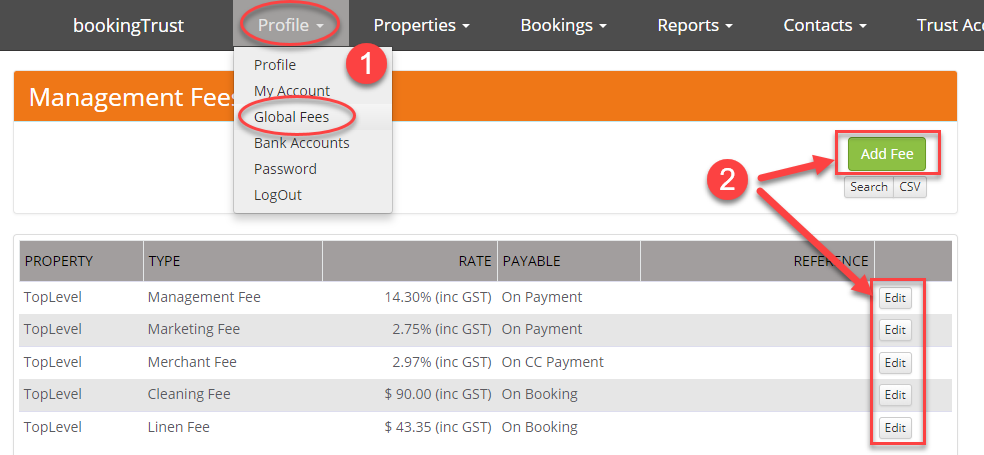
- Go to Profile > Global Fees. Review the existing rows before adding another fee of the same kind.
- Select Add Fee for a new rule, or Edit beside the intended default. Confirm that the form is for the top-level fee, rather than a property or contract.
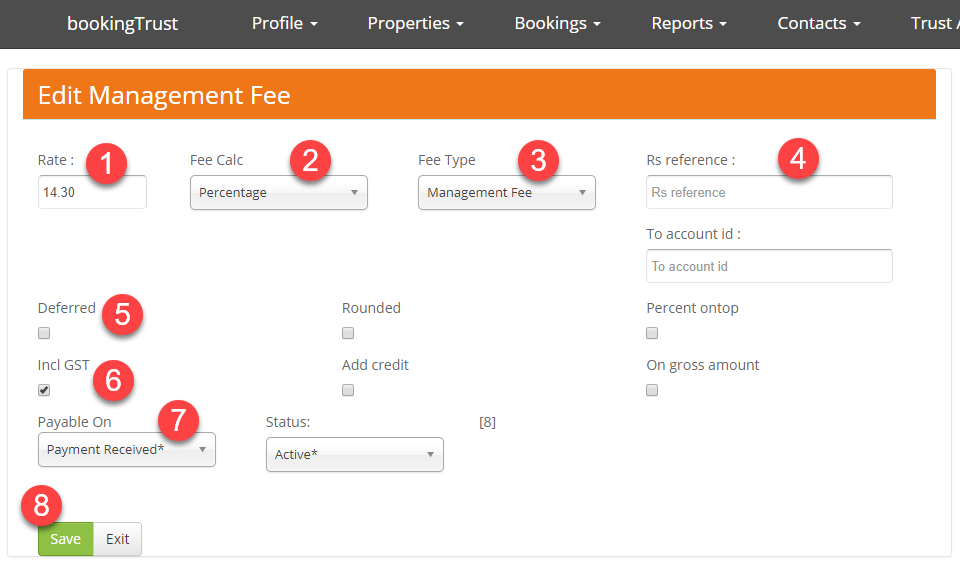
- Complete the rate, calculation, type and payment basis below. Check any start date and tax-inclusion setting against the agreed fee arrangement.
- Review the status and any advanced options, then select Save.
| Field | What to check |
|---|---|
| Rate and Fee Calc | Enter the amount or percentage and choose the matching calculation, such as Percentage or Flat Rate. |
| Fee Type | Choose the actual fee being charged, such as management, cleaning or the relevant agent fee. |
| Payable On | Choose the event/basis that generates the fee: Booking, Payment Received, Travel Agents or CC Payment as appropriate. This is separate from paying money at the bank. |
| Start Date | Check any effective date shown. Do not assume saving a rate rewrites all earlier bookings. |
| Incl GST / tax inclusion | Use the agreed tax treatment and the label shown for your account. Do not copy an example’s checkbox as a universal requirement. |
| RS Reference and advanced options | Agent references, Deferred, Add credit, On gross amount and Charge Guest can change calculation/allocation. Use a verified setup rather than changing flags to force a target total. |
Check the effective rate and generated amounts
- Open an affected property’s Fee Rates and check which rate is actually being used. An inherited contract/property exception may differ from the global default.
- Review a representative booking’s Fees and Payment Record, then its owner report. Check the intended recipient and calculation base as well as the amount.
- If existing bookings need a new rate, confirm the supported update process. Global, contract and property edits can have different effects; do not assume all historical or disbursed records have been changed.
If a fee is missing or duplicated, give support the property, booking reference and fee rule involved before adding another manual entry. For agent commission, see Record agent and channel commissions.