For the fees that are charged regularly (once a week, fortnight, month, year etc) you can set up a scheduled transaction that will be applied automatically.
The recurring fee will be treated as a management fee or as an invoice - all transaction types with the word "Due" are management fee types, all others will create an invoice record for you to edit at the time of confirming the invoice - you will need to add an invoice number and confirm the transaction.
As a Management Fee:
-
the transaction will be attached to the property, not to any particular booking
-
the transaction amount will be deducted from the owner's earnings as an expense
-
the transaction amount will be added to your management fees and paid to you at disbursement
-
the record of the transaction will appear on the owner's Booking Report as a management fee item under the list of all bookings, together with the list of invoices raised against this property
To set up your Recurring fees go to Transaction > Recurring and click on the green Add Recurring button.
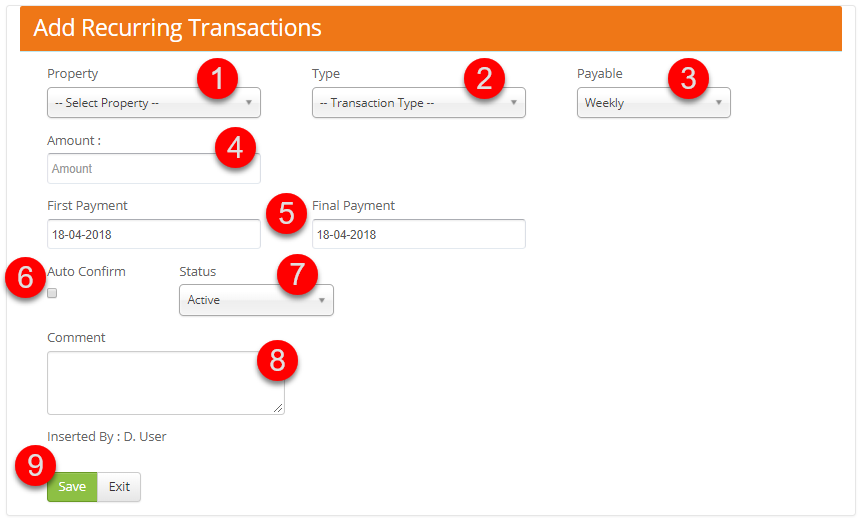
On the next page fill out your recurring transaction details as below:
-
Select the property
-
Choose transaction type (all transaction types with the word "Due" are management fee types, all others will create an invoice record for you to edit at the time of confirming the invoice - you will need to add an invoice number and confirm the transaction)
-
Determine how frequently the charge should be applied
-
Enter transaction amount
-
Setup the scheduled transaction start and end date
-
"Auto Confirm" box - check this box if you want your recurring transaction to be confirmed automatically otherwise, it will be added to a Pending Transaction and you'll need to confirm it once you're ready.
Note - we recommend to use the Auto Confirm option for management fees only, for invoices we recommend to leave this option unticked so that you have better control on the property's expenses. -
Set the recurring transaction status:
Active - leave status as Active to start your scheduled payment
On Hold - select On Hold status if you wish to put a pause on the recurring transaction
Cancel - to cancel your recurring transaction select status Cancel -
Add a description of your transaction - this comment will appear on the owner's Booking Report
-
Save
Once set, you can view a list of all your Recurring transactions by clicking on "Recurring" menu item on the right-hand side menu.