Set up a recurring transaction for an agreed property fee or expense that should repeat. The schedule creates BookingTrust records; it does not instruct your bank to make an automatic payment.
A schedule and its generated entries are different
Check existing schedules before adding another. Changing one generated charge does not change the recurring definition, and changing a schedule does not prove every earlier entry has been corrected.
On this page: Create the schedule · Understand Auto Confirm · Review, change or stop it
Create a recurring schedule
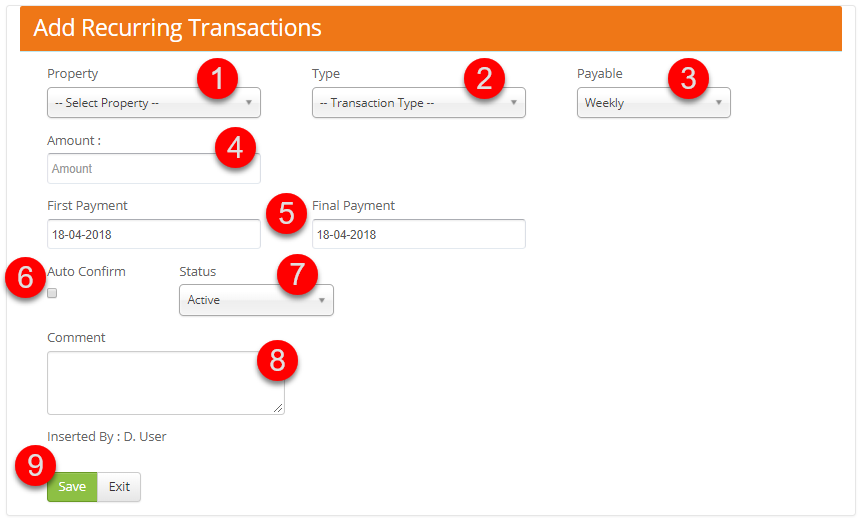
- Go to Transactions > Recurring and select Add Recurring.
- Select the Property and Type. Choose a management fee or invoice/expense type according to who should receive the money, not solely from words in its name.
- Set Payable to the agreed frequency, then enter the Amount.
- Check First Payment and Final Payment. Use the intended schedule dates; avoid creating a duplicate run of earlier charges.
- Review Auto Confirm deliberately. Check the tax-inclusion setting, Status and Comment, then select Save.
What Auto Confirm does
| Setting or state | What it means |
|---|---|
| Auto Confirm | Controls activation/confirmation of scheduled transaction records. It is separate from confirming actual bank activity and does not pay a supplier or owner. |
| Pending generated entry | Needs review and the appropriate transaction confirmation before it is treated as active. For an invoice, verify the supplier and invoice details; see Confirm a pending invoice. |
| Active generated fee | Can affect the owner report and available payout. Review it before disbursement; the bank payment remains a separate stage. |
For supplier invoices that need checking, leave Auto Confirm off unless your agreed process explicitly allows automatic activation. A management fee and a supplier payment can need different review steps.
Review and manage the schedule
- Reopen Transactions > Recurring or the Recurring shortcut. Check the property, type, amount, dates and status.
- Use Pending or List All where available to inspect the generated entries and confirm the next due amount/date.
- Use Edit for the fields available on the schedule. If the frequency, type or first date cannot be changed, ask support how to replace the schedule without creating duplicate charges.
| Schedule status | Use it when… |
|---|---|
| Active | The schedule should operate. |
| On Hold | The schedule should be paused. Also review entries it has already generated. |
| Cancel | The schedule should stop. Check existing generated records separately; this does not undo a real payment or erase transaction history. |
Changing an amount permanently? Update the recurring definition and check the pending/generated records it affects. If only one occurrence is wrong, identify that entry and use the supported transaction correction instead.
If an amount is duplicated or unexpected, give support the schedule reference, property and affected transaction dates before cancelling or re-creating it.