Some booking details can still be changed after the booking has been confirmed or released. Check the booking’s current state first, then review the effect on its charges, fees and owner report.
Check disbursement and reconciliation first
Contact support before changing a booking that has already been disbursed, a reconciled payment or refund, or a closed period. Available actions depend on your permissions and the record’s state.
On this page: Before you edit · Choose the right record · Make and check the change · Common questions
Before you edit
- Identify the exact change and the booking it belongs to.
- If your PMS supplies the details or transaction, use the appropriate source-system correction process. Manually maintained BookingTrust records are corrected in BookingTrust.
- Review the Payment Record, Statement and Fees, plus the property’s Booking Report. Note whether the funds have already been disbursed.
Choose the right record
| What needs changing | Where to start |
|---|---|
| Booking details, such as dates | More Details > Edit, if the action is available to you. Check how the change affects the nights and booking report. |
| An individual charge or payment entry | Payment Record > View for the relevant entry, then Edit if available. A reconciled payment or refund may require a supported correction instead. |
| An existing management fee | Fees, then the transaction link. Review the individual entry; changing a permanent fee rate is a different task. |
Make and check the change
- Find the booking. Search by booking number and select + to open its actions.
- Open the relevant record. Use the route above. If the needed action is unavailable, ask support rather than changing a different record to compensate.
- Make the supported correction. Check the date, amount or other detail against the underlying booking or transaction, then select Save.
- Review the result. Recheck the booking’s balance, Payment Record and Fees. For a date change, verify the dates and nights shown on the property’s Booking Report.
- Complete any required review. If the booking appears under Check Bookings or needs release again, review its records and follow Booking Release. Do not assume that saving a change has also released or paid additional funds.
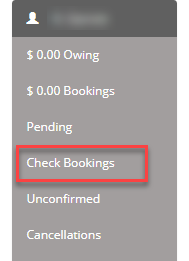
Review Check Bookings if it is shown for your account.
Preserve the real payment history
Do not delete a genuine receipt or refund, add a second payment, or change an amount just to balance the booking. Financial corrections should explain what actually occurred.
Common questions
Does every edit automatically send the booking to Check Bookings?
Do not rely on that. Check the booking’s displayed state and reports after saving, and complete any review or release it requires.
Should I use UnRelease?
Use it only when appropriate for the correction. It may be available before disbursement, and can also return a transferred booking to its original property. It does not undo a bank payment. Ask support if the booking has moved or the required steps are unclear.
Need help? Send support the booking reference, the change required, what has already been released or paid and any unavailable action or warning.