Add a booking manually when it needs to be managed directly in BookingTrust. Before you start, search for the booking by its reference or guest name so you do not create a duplicate.
Using a connected PMS?
If your property management system supplies this booking, check the import or sync first. A manually created copy can leave you with two records for the same stay.
Add the booking
- Go to Bookings > Add Booking and select the correct property.
- Enter the guest's real email address and name. If no email address is available, use No Email Address.
- Under Payment Details, select the appropriate Method, Source and Account for the booking.
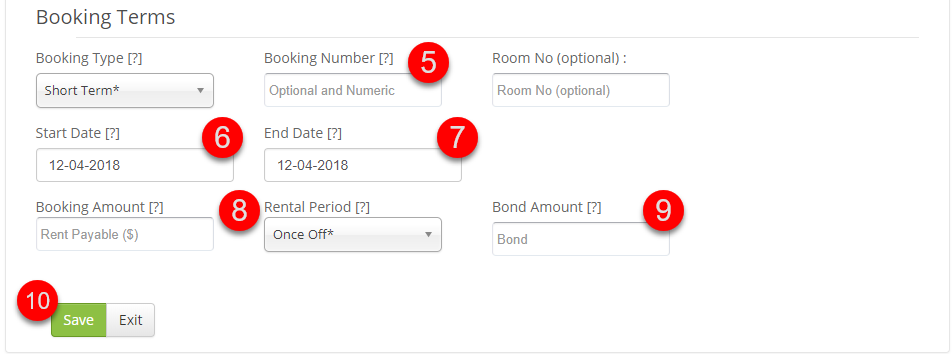
- Enter the booking reference in Booking ID or Booking Number, as shown on your screen. Use the matching PMS or booking-channel reference where applicable.
- Check the booking type and rental period, then enter the Start Date (arrival), End Date (departure) and Booking Amount. For a one-off short stay, use the total booking amount.
- Enter the required Bond Amount, or 0 if no bond is required.
- Review the property, guest, dates and amounts, then select Save.

Check the saved booking
Open the saved details, or find the booking under Bookings > Active or All. Check that it appears once and belongs to the correct property.
The booking amount and bond amount describe what is expected. Saving the booking does not confirm that money has arrived in the bank. Record any actual payment through the payment-entry process, then confirm it against the bank transaction.
Related: Record a booking payment · Edit booking details · Add or change a bond amount