This applies to stand-alone clients and PMS clients without payment information supplied by the PMS (eg YesBookit)
To record a payment made by the guest follow the steps below:
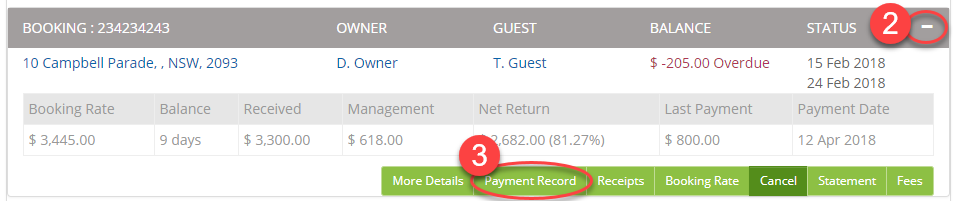
- Find your booking: Bookings > Active > you can click Search button or scroll down to find your booking on the list
- Open up a submenu with the plus button
- Click on the Payment Record button.
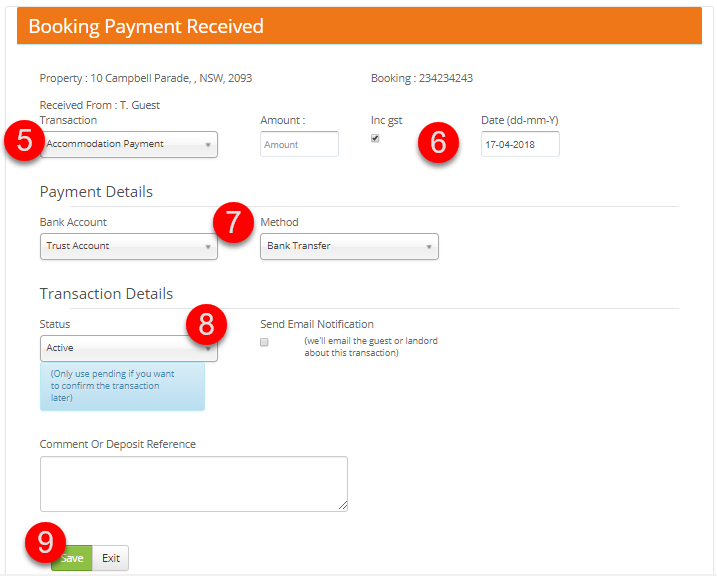
- On the next page click on the green Payment Received button and fill out all information as follows:
- Select the transaction that your payment is for Payment Received - This will split the original payment into the various payment types and created the one payment entry in the cashbook
- Accommodation Payment - this option is a payment for accommodation - the tariff. This figure will be used to calculate your management fee %
- Guest Charge Payment - this option is for any guest charges that will be paid directly to you as a part of your Management Fees. Those funds will not be shown to the owner in the Booking Report and will be added to your Management Fee amount.
- Bond Received - this option will be recorded in the bond section and ready for release once the booking is completed and confirmed.
***Please note***
For each transaction type: accommodation, guest charges and bonds, a corresponding payment type will be created - Enter the payment amount and payment date (by default it will be set to today's date)
- Under the Payment Details section confirm the bank account the money was entered into (it should be set to Trust/Host Account by default) and the method of payment
- Transaction Status - always leave as Active
- Save changes
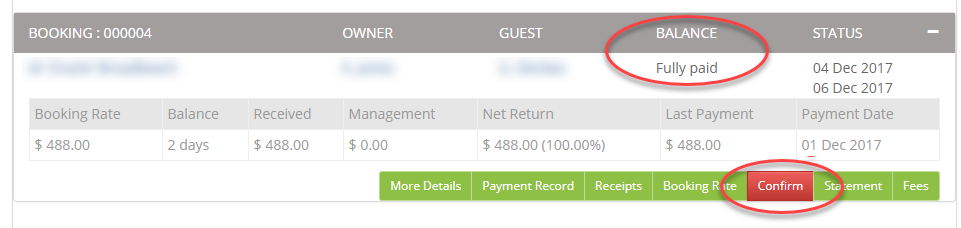
- Once done the booking Balance will show Fully Paid and your booking is ready to be Confirmed
Click Here to find out how to Confirm your booking and what it means.