Cancel a booking in BookingTrust, review the resulting fees and charges, and check any refund that needs to be recorded. Keep the booking’s actual payment history accurate throughout the process.
Saving a cancellation does not return money to the guest
The cancellation screen can record a refund. Arrange the actual refund separately through the appropriate payment provider or bank, and reconcile the resulting transaction.
On this page: Before you start · Cancel the booking · Check the result · Common questions
Before you start
- If your PMS supplies the booking, follow your integration’s cancellation process and check what has already reached BookingTrust.
- Open the booking’s Payment Record, Statement and Fees. Check the receipts, refunds already recorded and the applicable cancellation fee.
- Decide what is to be refunded and what may be retained under the agreed cancellation terms. If the allocation is unclear, resolve it before saving.
- If the booking has already been released or disbursed, check Modify a confirmed or released booking or contact support before changing financial records.
Cancel the booking
- Find the booking. Search by booking number, then select the + to open its actions.
- Open the cancellation screen. Select Cancel if it is available, and review the booking and payment summary. If it is unavailable, follow your integration’s process or ask support.
- Check the cancellation amounts. Enter any applicable Cancellation Fee ($). Check Refund Amount ($) against the refund entry that needs to be recorded. Do not record a refund a second time if it is already in the booking.
- Save the cancellation. Check the entries, then select Save. Saving updates the booking’s cancellation records and may change its fees and charges.
- Return to the booking. Use View Details if offered, and complete the checks below.
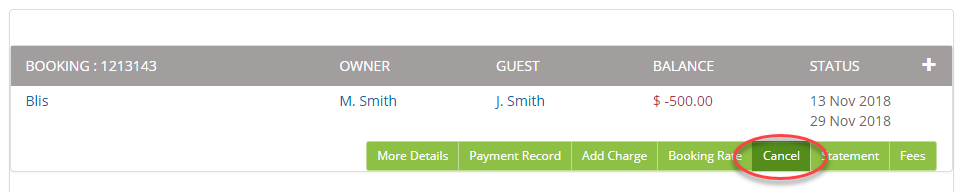
Open the booking’s actions, then select Cancel.
Check the result
- Check the cancellation status and date.
- Review the Payment Record and Fees again. Check that the cancellation fee, remaining charges and any recorded refund match the agreed outcome.
- Check the Statement against actual receipts and refunds. A refund entry is not proof that the money has left the bank.
- Arrange any refund still due and ensure the resulting transaction is recorded once and confirmed against the bank. Follow Daily bank reconciliation.
- When the financial records are correct and the cancellation is ready to be finalised, follow Booking Release for the release checks.
Investigate an unexpected balance
Do not delete a real payment, increase a refund or add a credit simply to clear the balance. Identify the difference and who it belongs to; contact support if the correction is unclear.
Common questions
The PMS already says Cancelled. Why are charges still visible?
A cancellation status and a completed financial review are separate. Check which charges or fees should remain before using the cancellation screen again.
Why is the booking still waiting to be finalised?
There may be an outstanding refund, unconfirmed transaction, remaining amount to allocate or release warning. Review the Payment Record and Statement rather than assuming the cancellation alone closes every financial item.
Need help? Send support the booking and property references, the cancellation outcome required and the receipts/refunds already recorded. Include the warning or unexplained balance.