Record a supplier invoice that is to be paid from the Trust/Host Account and charged to the correct property. If your business has already paid the supplier from trading, use Services paid from trading to record the owner reimbursement.
Recording the invoice and paying it are separate
An active or confirmed invoice can affect the owner’s funds and payment instructions. You still need to complete the actual bank payment and reconcile it.
On this page: Before you start · Add the invoice · Choose the status · Check the result
Before you start
- Have the supplier invoice, property allocation and payment details ready. Check the invoice has not already been entered or paid.
- Set up the supplier and bank details so you can select the correct payee.
- For one invoice covering several properties, decide each property’s share before entry. Follow Allocate one invoice across properties.
Add the invoice
- Go to Transactions > Add Invoice.
- Select the Property that is being charged.
- Select the appropriate Transaction, then enter the invoice number, amount and correct transaction date. Check the tax-inclusive setting against the invoice.
- Use Multiple Invoice only for an intentional allocation that reuses the same invoice number.
- Under Bank Account, select the Trust/Host Account that will fund the payment.
- Select the correct Supplier. A missing supplier can prevent a pending invoice being confirmed.
- Check the payment Method.
- Choose Status using the guide below.
- Add a clear service description and reference in Comment Or Deposit Reference. The description can appear on the owner’s Booking Report.
- Review the details and select Save.
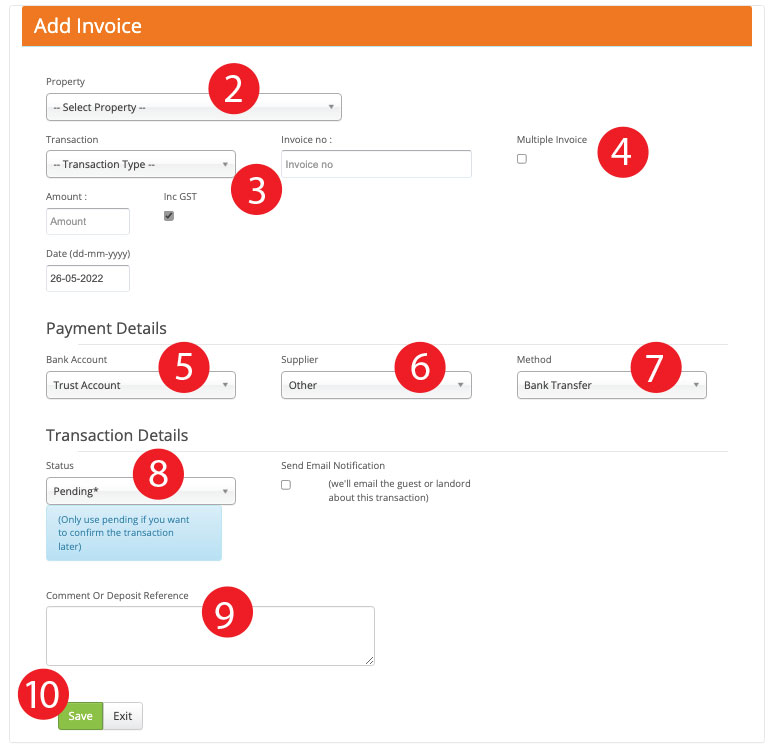
Select the actual supplier and review every field before saving.
Choose the invoice status
| Status | Use it when |
|---|---|
| Pending | You want to record the invoice now and confirm it for payment later. |
| Active | The invoice is ready to be included in the property’s payment records. Check funds, supplier details and the payment list before paying. |
Check the result and complete payment
- Check the saved property, invoice number, supplier, amount and status.
- For a pending invoice, follow Confirm a pending supplier invoice when ready.
- For a payment-ready invoice, check the property’s Booking Report and Trust Account > ABA Export. Eligible supplier payments appear there unless excluded from EFT.
- Complete the bank payment through Export and complete bank payments, then match the actual withdrawal during bank reconciliation.
A date or funds warning? Check the available property funds and whether the date belongs to an already reconciled period or earlier disbursement. Resolve the cause before retrying; contact support if the correction is unclear.