Add a contractor or service provider and their bank details so you can select them as the supplier on a property invoice. Check for an existing contact before creating another record.
On this page: Add the contact · Add bank details · Choose EFT handling · Check the setup
Add the supplier contact
- Go to Contacts > Add Contact.
- Select Trade/Service as the account type.
- Enter the genuine contact details. Select Company where the supplier is a business, and enter its name and relevant details.
- Keep Don’t Invite selected if you only need the payee record and do not intend to send an invitation.
- Select Save, then open the saved profile.
Add the bank details
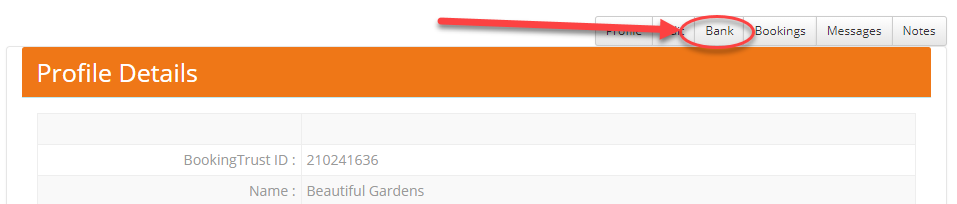
- From the supplier’s profile, select Bank. For an existing supplier, find it under Contacts > Companies or Services and open its bank details.
- Select Add Bank Account or the displayed add-bank-details action.
- Enter the supplier’s account name, account number and bank code, such as the BSB where applicable. Verify these details against the approved supplier information.
- Choose the EFT setting below, then save the bank record.
Choose how the supplier will be paid
No EFT Transfer excludes the supplier from the export
Leave it unticked for eligible invoices to appear in the ABA payment list. Tick it only when the supplier is to be paid separately. The setting does not make or cancel a bank payment.
Check the setup
- Reopen the contact and bank record to check that the intended supplier and account are saved.
- When you add an invoice, select this supplier explicitly. If it is unavailable, check its contact type and bank record before adding a duplicate contact.
- Review the payee and amounts in the payment list before using Export and complete bank payments.
Does adding bank details pay the supplier?
No. Add the appropriate invoice, confirm it when ready and complete the actual payment separately.