Use the Booking Report to review a property’s released bookings and owner payout before disbursement. Use saved disbursement reports for earlier payouts, and the property Statement to trace financial entries.
Choose the report for the question
The Booking Report, property Statement and saved disbursement reports show different views. A current report preview does not prove that money has been transferred at the bank.
On this page: Choose the right report · Review the current payout · Find an earlier report · Find a missing booking
Choose the right report
| You want to… | Use… |
|---|---|
| Check the bookings, fees and charges for the next property payout | Trust Account > Disbursements > Booking Report. This is the owner-report preview before disbursement. |
| Trace financial transactions and a property balance | The property Statement. Open the property and select Statement to inspect its ledger entries. |
| Review a report for a disbursement already recorded | Reports > Disbursements. Select the relevant property and disbursement record. |
| Check trial-balance and three-way report totals | Trust Account > End of Month. See End-of-month procedure. |
Review the current owner payout
- Go to Trust Account > Disbursements and find the property.
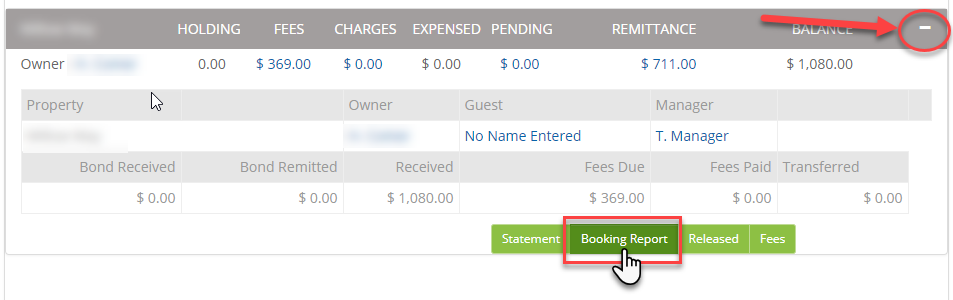
- Expand the property with the + if needed, then select Booking Report. Open the report to view or download it.
- Check the property, owner and report period first. Review the bookings, charges, fees and expenses, then check the owner’s remittance.
- If an amount is unclear, find its booking or transaction in BookingTrust and compare the details. Resolve the difference before disbursing the property.
Depending on the report layout, you will see:
- Your business details and logo, where configured.
- Booking details such as dates, reference and number of nights, with the charges and fees attached to each booking.
- Property-level fees and expenses that are not attached to a particular booking.
- A summary of the accommodation, fees, expenses and owner payout.
Checking a booking payment? Open the booking’s Statement to trace financial entries and its Payment Record to see how amounts were allocated. These are separate from the property’s owner-report preview.
Find a report for an earlier disbursement
Go to Reports > Disbursements, find the relevant property and disbursement, then open the saved report. You can also open a property and review its Disbursements records.
Compare reports for the same property and disbursement date. A current preview can change as further bookings and fees are released; it is not a substitute for the report recorded with an earlier payout.
Sending a report: disbursement can send an owner report, depending on account/report settings. Where an Email Report action is available for a saved report, check the recipient and selected report before using it. Viewing or downloading a report does not, by itself, confirm that an email was delivered.
If a booking is missing from the report
- Search for the booking using its booking reference or guest name. Alternatively, go to Properties > Active, open the property’s Calendar and select the reservation. Use the displayed status and calendar legend.
- Check that its payment has been recorded, correctly allocated and confirmed against the bank where required. An unreconciled or missing receipt may prevent release.
- Check whether the booking has been released for this payout or included in an earlier disbursement. Follow Booking Release to investigate a release warning.
- Reopen the appropriate current or historical report after confirming which disbursement contains the booking.
Do not add a duplicate payment or balancing credit just to make a booking appear. If the records do not explain the missing booking or total, contact support with the property reference, booking reference, report/disbursement date and checks already completed.
PDF companion
Download the sample owner report (PDF) as a reference example.