By Global Fees, we mean management fees that are automatically applied to each booking, depending on the requirement - per booking, per payment or per booking source etc.
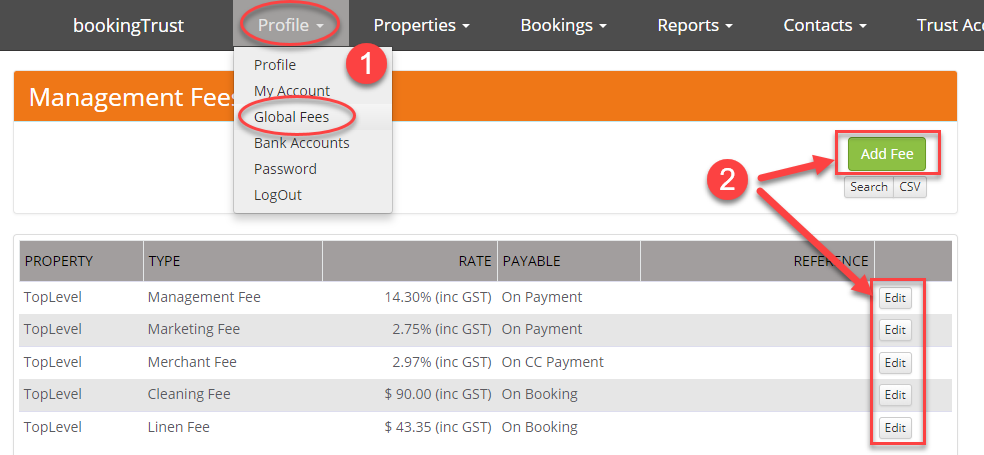
To set your Global Fees go to Profile > Global Fees
Global Fees are management fees automatically applied to bookings or transactions.
All fees set up in this section will be deducted from the owner's money and displayed on the Owner's Booking Report (Owner's statement) as an expense to a particular booking.
Depending on the Global Fee options selected, those fees can be set as a flat fee added to each booking (ie cleaning fee), the percentage calculated on payment received (management fee) or a percentage of the cc payment (merchant fees).
Global Fees can also be used to calculate OTA commission for each distribution channel (ie Booking.com) or for a Retainer Money - money held against a property for future expenses.
You will find more information about each option in this article.
When starting using Booking Trust the Global Fees will already be set for you, however, if you need to add any more records you can do it anytime.
Please note that adding additional Global Fee will create an additional fee for all bookings imported (or entered) to Booking Trust from that time on. Bookings previously entered into Booking Trust will not have the new fee applied.
To add a Global Fee:
- Go to Profile > Global Fees
- Click on Add Fee button or Edit button next to the existing Fee
On the next screen, edit existing or enter new details using the following options:
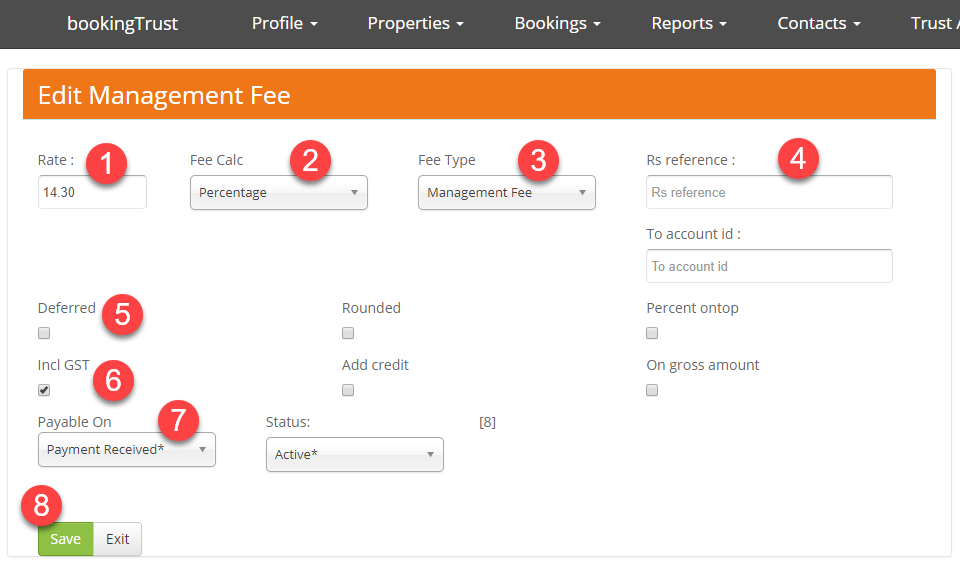
- Enter the gross (GST inc) fee amount or the percentage value
- Fee Calc - Each fee can be set as a percentage or as a flat fee - select one of the options from the drop-down menu.
- Select the correct Fee Type. You can choose from the list of available fees including Management fee, Cleaning or Linen fees as well as the Online Travel Agents.
- RS Reference is only used to identify Travel Agent bookings. Leave this option blank for any other fee types.
if you're using Newbook as your PMS, use the same reference code in RS REfenrece field as you use in Newbook. iefor Booking.com commission use Booking.com RS Reference code - Deferred - this option is only used for OTA commission fee
- Inc GST - please tick this checkbox as BookingTrust is always showing fees with GST inclusive.
- Payable on - see the list of options below with the description of how they're used:
Booking - used for Flat Fee that is added to each booking (ie. cleaning fee, linen hire)
Payment Received - used for Percentage fee that is calculated based on Accommodation Payment received (ie. Management fee)
Travel Agents - used for Percentage fee along with the OTA option under Fee Type (ie Bookinng.com Fee Type). Note that you must use RS Reference code for each OTA. See below for more details.
CC Payment - used for Percentage fee that is calculated on all CC payment types (ie. merchant fees)
Disbursement - used ONLY for Money Retainer option (money held for each property used for any future expenses) - Save
Examples:
Management fees setup:
- Rate: enter the % value here including GST
- Fee Cal: select Percentage
- Fee Type: select Management fee
- RS Reference - leave blank
- Deferred and other options in this section - leave unticked
- except for the Inc GST checkbox - please select this option as we will be calculating your gross % amount
- Payable on - select Payment Received (the management fee is always calculated as a % of accommodation payment received)
- Save changes
Cleaning Fee setup:
- Rate: Enter the fee amount including GST
- Fee Cal: select Flat Fee
- Fee Type: select Cleaning
- RS Reference - leave blank
- Deferred and other options in this section - leave unticked
- except for the Inc GST checkbox - check this box
- Payable on - select Booking (the cleaning fee will be added to a booking as a flat fee per booking)
- Save changes
OTA commission (ie. Booking.com) setup:
- Rate: Enter the fee amount or percentage value including GST
- Fee Cal: select Percentage
- Fee Type: select the Booking.com option
- RS Reference - place Booking.com text in the reference field (for Newbook clients - this will be the same reference number as in your Newbook account)
- Deferred and other options in this section - leave unticked
- except for the Inc GST checkbox - please select this option as we will be calculating your gross % amount
- Payable on - select Travel Agent
- Save changes
Money Retainer - (coming soon)
If you're unsure which option to choose, please get in touch with us by emailing support@bookingtrust.com.au
Once you fill the form out - click save.