Find a transaction, check what actually occurred, then use the appropriate correction. Edit or delete an incorrect entry only when its source and financial history support the change.
Keep genuine payments and refunds in the records
Deleting or editing an entry does not undo a bank payment. If money was received and later returned, keep the original receipt and record the actual refund. Do not change transactions just to make a balance agree.
On this page: Choose the correction · Find the transaction · Edit or delete · When to get help
Choose the right correction
| Situation | How to proceed |
|---|---|
| A PMS supplies the charge or payment | Check the source record in your PMS. Correct it through the supported source/import process rather than making a conflicting manual change in BookingTrust. Ask support if the source is unclear. |
| A manually entered invoice, fee or payment has an error | Check the original invoice or payment evidence. Use the available Edit action only for the correction that is actually required. |
| The entry is a verified duplicate or records something that did not occur | Check the original/source records first. Delete may be appropriate if available and the entry has not become part of reconciled or disbursed records. |
| The entry is bank-confirmed, reconciled, in a closed period or already disbursed | Contact support before changing it. The supported correction depends on the transaction and the records already completed. |
Find the transaction
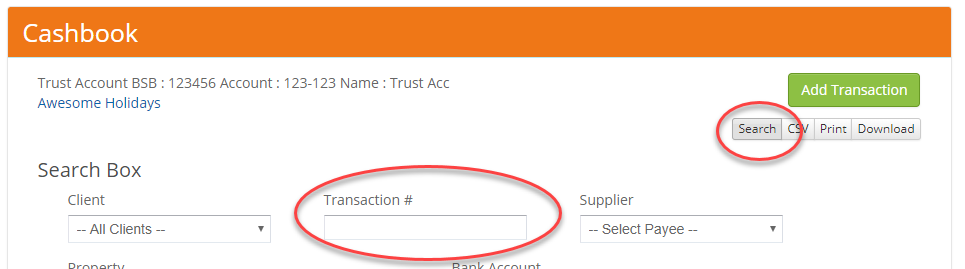
- Go to Trust Account > Cashbook.
- Select Search, enter the transaction number in Transaction # and run the search.
- Select the matching TRANS# to open its details. Check the property, booking if applicable, amount, date, type and bank-confirmation status.

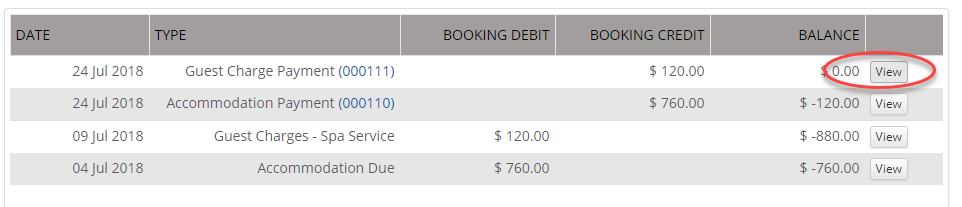
Another route for a booking transaction: open the booking’s Payment Record, find the entry and select View. Check whether you are viewing a charge, a receipt or a refund before changing it.
Edit or delete the incorrect entry
- Make a note of the transaction reference, current details and reason for the correction.
- If Edit is available, change only the details supported by the source records, then select Save. If Delete is appropriate, verify that this is the incorrect/duplicate entry and review the confirmation before proceeding.
- Reopen the Cashbook and, where applicable, the booking’s Payment Record and Statement. Check that the intended correction is reflected and that the original genuine payment has been preserved.
- Review any affected owner report before further release or disbursement. An edited entry does not, by itself, complete bank reconciliation.

Correcting a fee? Check the charge or fee entry rather than changing the payment to make it match. See Edit or remove a management fee record. If an incorrect charge is generated repeatedly, also review the recurring charge setup; editing one occurrence does not establish the future amount.
When to get help
If Edit or Delete is unavailable, a date is blocked, or the entry is already reconciled/disbursed, stop and contact support. Do not choose a false date, unconfirm records or remove other transactions just to bypass the restriction.
Include the transaction number, property/booking reference, what is wrong, what actually happened and whether the money has reached or left the bank. If a refund or duplicate is involved, include the related transaction references.