Add a charge to an existing booking and choose whether the guest pays it or it is deducted from the owner’s earnings. A booking charge belongs to a particular booking.
Check your PMS first
If your connected property management system (PMS) supplies the booking’s charges, make the change there where possible. Add the charge directly in BookingTrust when it cannot be entered through that process, and check that the same charge has not already been imported.
On this page: Choose who pays · Add the booking charge · Check the result · Corrections and ongoing fees
Choose who pays the charge
| Charge Guest setting | What it means |
|---|---|
| Selected | Adds a charge payable by the guest and increases the booking total. The guest charge appears in the Payment Record, with its related fee entry. |
| Cleared | Records an expense against the booking for the owner. It reduces the owner’s return without increasing the guest’s booking cost. |
These charges are accounted for in the manager’s fees or charges at disbursement. Saving a charge does not collect money from the guest or send a bank payment.
Add the booking charge
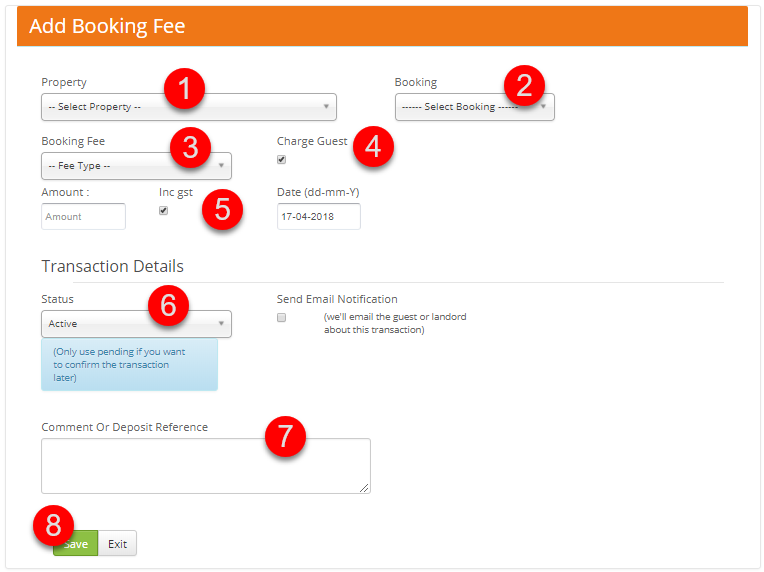
- Go to Transactions > Add Booking Charge. Alternatively, find the booking, expand it with + and select Add Charge when available.
- Select the Property and Booking. Check both even if they are already filled in.
- Choose the charge type in Booking Fee.
- Set Charge Guest deliberately: select it for an additional guest charge, or clear it for an owner expense. Check the setting rather than relying on its default.
- Enter the correct Amount and Date, and check the tax setting shown.
- Set Status to Active for a charge that should take effect now.
- Enter a clear description in Comment Or Deposit Reference. For an owner expense, this helps explain the charge on the owner’s Booking Report.
- Select Save and check the success message.
Check the result
- Guest charge: reopen the booking’s Payment Record and check the charge and revised balance. A charge entry does not mean the guest has paid it.
- Owner expense: check the booking’s fees and the property’s Booking Report to confirm the amount and description.
- Before release: make sure the charges, payments and any adjustments explain the booking balance.
Corrections and ongoing fees
If the amount or description is wrong, edit the existing fee or charge when permitted, rather than adding the same charge again. If the booking is released or disbursed and the required control is unavailable, check the existing transaction before requesting a correction.
For a fee applying to the property as a whole, use Add Management Fee. For an automatic rule applying to future bookings, review Global Fees or the property’s Fee Rates.