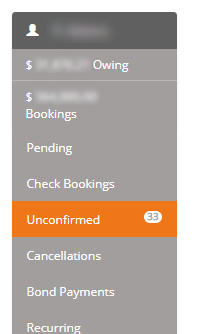
Completed Newbook bookings that need checking before funds are released appear in Bookings > Unconfirmed. Review and reconcile each booking before confirming it.
Confirm only after the booking is complete
Check that the guest has checked out, the booking is fully paid, and all charges, payments and fees are correct. Confirmation releases the booking’s funds into the property’s disbursement workflow.
Review and reconcile the booking
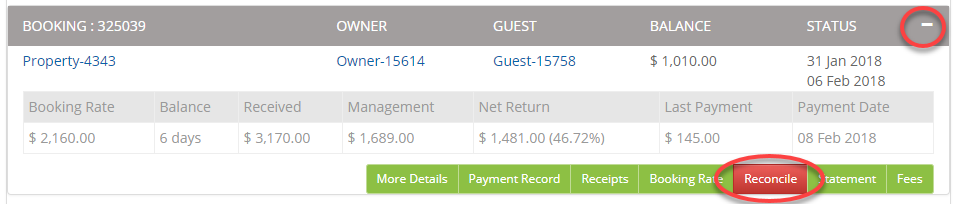
- Open the booking from Bookings > Unconfirmed.
- Select Reconcile to compare the booking’s charges and payments with Newbook.
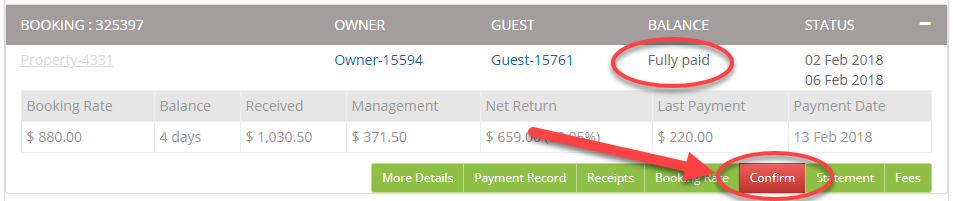
- Check the booking balance and each charge and payment. A fully paid balance is a useful check, but also verify that all expected items are present and correctly classified.
- If a charge is allocated unexpectedly, check the Newbook GL account’s owner-payable setting. See Check Newbook GL code settings.
- If information is missing or the totals do not match, compare the booking in Newbook and reconcile again. Contact BookingTrust support if the difference remains; do not confirm while you are still investigating a discrepancy.
Confirm the booking
When the booking has checked out, is fully paid, and its charges and payments are correct, open the booking’s action menu and select Confirm. The booking leaves the Unconfirmed list and its funds become available in the property’s disbursement workflow. For the complete sequence, see How a Newbook booking moves through BookingTrust.
If a confirmed booking later receives changes or transactions, it may appear under Check Booking. Reconcile the changes against Newbook and review the booking before confirming it again. If the change affects a completed disbursement or you are unsure how to handle it, contact BookingTrust support with the booking reference.