 |
Download this Article as a PDF |
Once you've been given your username and password these are the items to be checked before going live with bookings.
Your Subscription Details
Make sure that you have subscribed to BookingTrust monthly subscription fee:
Profile > My Account Then click on Upgrade my account (green button in the middle of the screen.
For the setup fee, you will receive a separate invoice from us.
Setting up Your Profile
Go to Profile > Profile > Edit details
Please enter your contact details and company details here. If you have a logo you'd like to put on your reports, please email it to support@bookingtrust.com.au and we'll get that set up for you.
Setting up Bank Accounts
Go to Profile > Bank Accounts and update your Trust Account and Trading Account Details. Use the 'edit' button to update these records. Do not delete or add any accounts to this section, please only edit the correct details for your Trust (or Host) account and your Trading account. This will tell BookingTrust which account to use when transferring management funds at the end of the month.
Further Reading Setting up your Bank Account Details
Global Fees
Global Fees apply to all properties and all bookings. We will assist in setting up your Global fees, so please arrange a time to go through this before going live, or send your fee structure through to support and we'll get the global level set up.
Email your Fee Structure to us support@bookingtrust.com.au
Further Reading Setting up Global Fees
Override Global Fees on Property/Owner Level
You can modify Global Fees on a Property Level or Owner Level.
For the Property Level - go to Properties > Active Properties, open submenu with the + sign and click on the Fee Rates button to edit Fees.
Further Reading Overriding Global Fees.
Property Owners Records
For Stand-Alone Clients
- The property owner's record is created automatically at the time when you create a new property. All you need to do is to add the bank details. Read the article Add Owner’s Bank Details for instructions on how it's done.
For An Integrated PMS (Property Management System)
If your owner's details were imported from your PMS, please double check those records:
- Check that all properties have the correct owner details, remembering that the owner is made unique by their email address. Go to Properties > Active Properties and check that each property has the correct owner attached to it.
- To view the owner's details click on the Owner's name attached to the property.
- To edit bank details, access the owner's record and click on the Bank Acc button
Read more about how to Add Owner’s Bank Details - To edit the owner's email, click on the owner's name and then on the Edit button.
- If there are any owners that have been allocated to a wrong property, please send the Property ID and client Id to support@bookingtrust.com.au so we can adjust the records.
Note: You cannot change owners once they are allocated. If they are incorrect, please email
If we're not able to import your owner's details from your PMS, all properties will have you as the owner (the property manager).
To add a new Owner/Landlord, go to Contacts > Add Contact and Add Profile. Read the instructions on how to Add Owner’s Bank Details.
Allocating Properties to the Owners
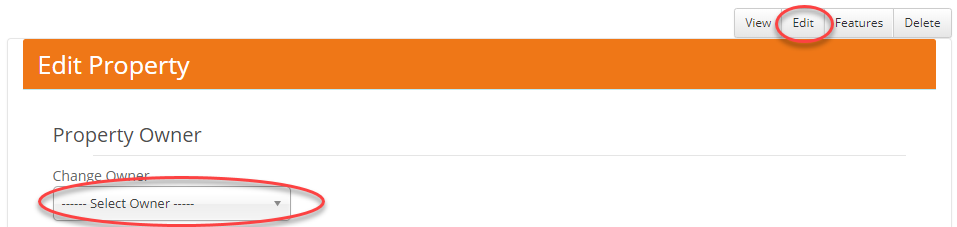
Next, you'll need to associate this record with the property - click on the property name, then click on the Edit button and select the owner from the drop-down list.
Add Suppliers/Contractors Records
Add your suppliers' details by creating a new contact and adding their bank details. Read about Adding Contractors Details (Companies and Services) to see how it’s done.
This will ensure that you can select a supplier when creating an invoice and that the supplier record will be added to the ABA file for batch payment.
If you are interfacing with a PMS such as Guesty, YesBookit, NewBook or IBM, please let us know via support@bookingtrust.com.au once these items have been completed and we will download your data for you to check.
Add Owner’s Records
For Instructions, go to Add Owners Records.
Overriding Global Fees
For Instructions, go to Overriding Global Fees.
Ready to start your BookingTrust Training?
A BookingTrust staff member will take you through how to use the software and can answer any questions you may have. Please book in a time via our online calendar https://app.hubspot.com/meetings/craig102.
Please read our Support Policy for details on your free training.
For any other questions, please email support@bookingtrust.com.au