Add the bank account used for an owner’s payments. Set up the owner’s usual destination first, then add a property-specific account only where a property needs a different destination.
Check who and what you are updating
The owner contact, the property’s owner link and the bank account are separate records. Verify the correct owner before entering payment details.
On this page: Add the account · Check the scope · Before paying
Add the owner’s bank account
- Go to Contacts > Owners and find the owner. You can also open the owner by selecting their name on the property listing.
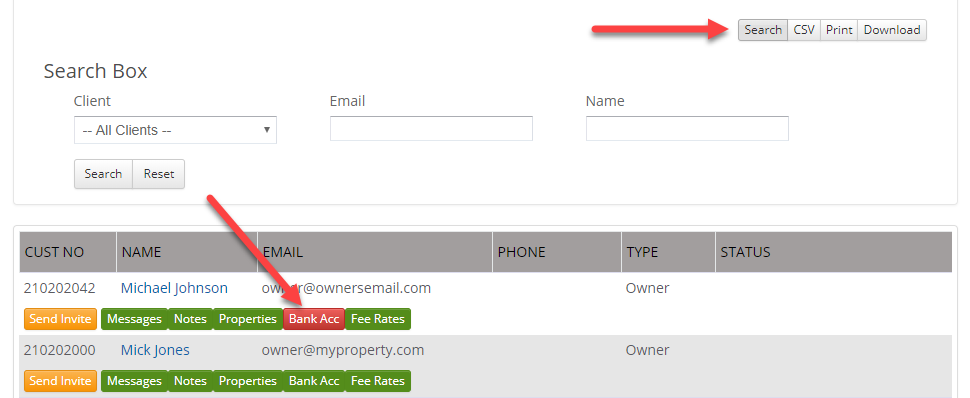
- Select Bank Acc in the owner listing, or Bank from their profile.
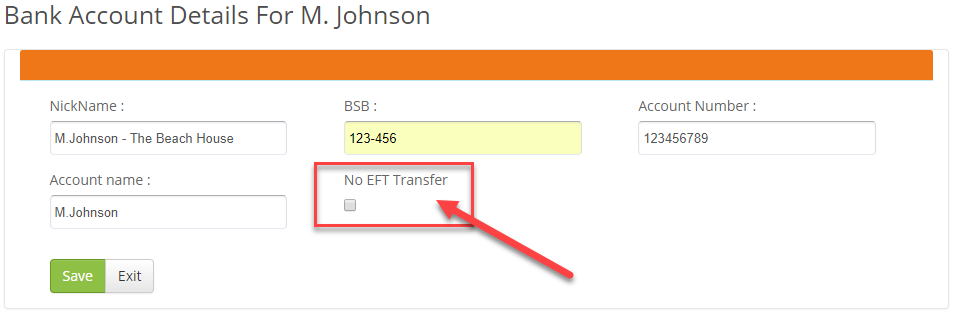
- Select Add Bank Account. Enter the account name, bank/branch details and account number required by the form for your country.
- Review No EFT Transfer. Select it only if this account is intentionally excluded from the EFT/ABA payment-file process.
- Check all details and select Save. Reopen the account and verify the saved destination. If more than one owner account is listed, check which is designated as the default before using it.
Check which properties use the account
| Destination | How it is used |
|---|---|
| Owner’s default account | The usual destination for the owner’s properties where no property-specific account is set. |
| Property-specific account | A different destination attached to one property. Check it separately when changing the owner’s default account. |
An owner with several properties does not need a new contact for each property. Use Set a bank account for one property for exceptions. If the usual account already exists and only its details have changed, use Update an owner’s bank details.
Before paying the owner
- Check that the correct owner is linked to the property.
- Check any property-specific destination, the default account and the intended EFT setting.
- Review the payee and destination when following Export and complete bank payments. Saving bank details does not send a payment.
What does a red Bank Acc button mean?
The owner listing uses a red button when bank details are missing and a green button when a record is present. A green button does not prove the account number or intended destination is correct.